Showing posts with label protect PC. Show all posts

OtShot Removal---Guides on How to Remove OtShot

OtShot is deemed as a potentially unwanted program that can bring users many troubles. In most cases, it sneaks into your computer via other free downloads. There is one thing we should know, that is OtShot is not a virus, but during the setup process some adware or browser hijackers may be promoted to install on your computer. 
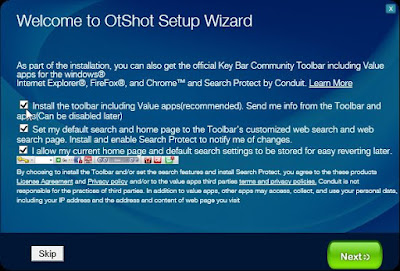


Details about OtShot


OtShot is a photo editing application that is typically added when you install some freeware or shareware (video recording/streaming, download-managers or PDF creators) that can be bundled into the installation of OtShot. Most commonly, users know little about this "extra process". The OtShot installer is packed with JollyWallet, Conduit Search, Value Apps, FindLyrics, LyricsPal and other malicious or unwanted programs.

When the installation process is completed, and you accept all the default setting, then, your default homepage and search engine will be modified, soon you will see many popup ads, links and banners displayed on every webpage you visit. Even when you uninstall OtShot from your computer, your web browser’s default settings will not be restored, and this malicious programs will not be removed entirely.

Though OtShot is not an evil virus, it still make chaos for your online life. On the one hand, it will bring you many unknown malicious programs without your consciousness. On the other hand, it will always display pop-ups saying “Unable to load skin” and “Would you like to import your contacts from Outlook”  every time when you turn on your computer.

OtShot removal steps


Warm tips: Otshot do bring users many troubles, therefore, we highly recommend you to remove it from your computer as fast as you can. The following we will show you the manual steps and the automatic steps. But the manual steps involves in some complicated steps, one should choose the automatic one if he/she know little about computer skills.


Method 1. Manually remove OtShot


Step 1. Uninstall OtShot from your computer

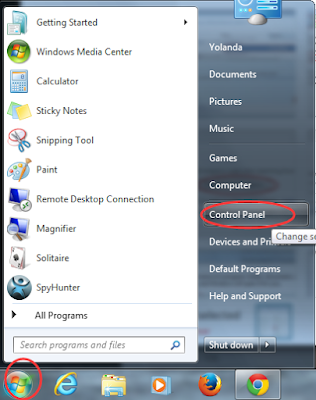
1.Access Window’s Start Menu and select “Control Panel”.
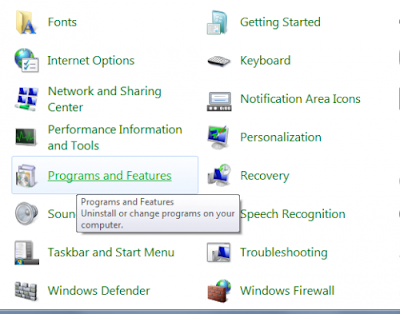
2. Select “Programs and Features”.
3. Search for the potentially unwanted program and uninstall it by clicking the “Uninstall” button.


Step 2. Uninstall  OtShot  from your browser

Internet Explorer
1. Go to Tools and select Manage add-ons
2. Disable the items which are related the program.


Mozilla Firefox
1. Go to Firefox’s Tools, and then select Add-ons
2. Navigate to Add-ons panel, and remove those extensions which are associated with OtShot


Google Chrome
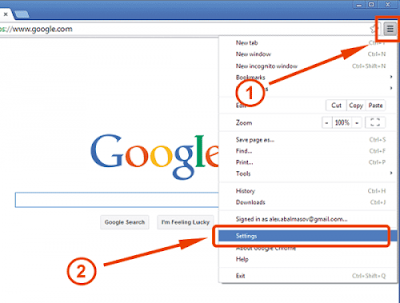
1. Click the Menu icon of Chrome and select Settings
2. Click Extensions on the left panel and remove the extensions related to OtShot


Step 3. Reset your browser

 Internet Explorer
  • launch up IE> click Tools (click on gear icon in IE9/IE10)> choose Internet Option
  • Internet Option window> Advanced tab> click Restore Advance Settings> click on Reset
  • tick Delete personal settings> click on Reset


 Google Chrome
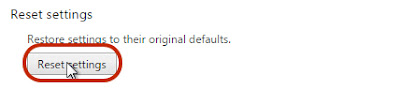
  • open Google Chrome>click on Settings>choose configuration page> search for Open a specific page or set of pages> click on Set Pages
  • find configuration page> search for Manage search engines and click it> get Default search engine settings> change your default search engine
  • search for these 2 options: Make Default&Close button “x” to delete the search engine.
  • make default your Google search engine and delete all one by one


 Mozilla FireFox
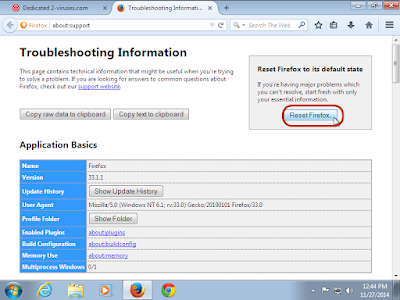
  • open troubleshooting information from browser Firefox
  • get Help menu and click Troubleshooting information
  • with page of Trouble shooting information, search for Reset Firefox and click on Reset.


Method 2. Automatically remove OtShot with SpyHunter

SpyHunter is a legitimate, real-time anti-spyware application designed to assist the average computer user in protecting their PC from malicious threats. Here shows how it works.

Step 1. Download SpyHunter

1) Download SpyHunter here or click the below button to download the file.
http://www.blogines.com/zmxg/spyhunter.php

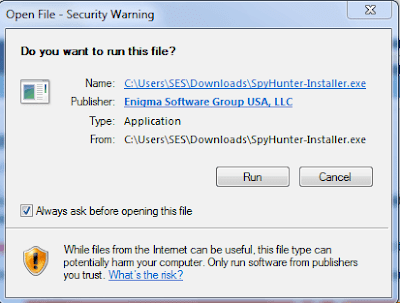
2) Double click on SpyHunter-Installer.exe to install the program.

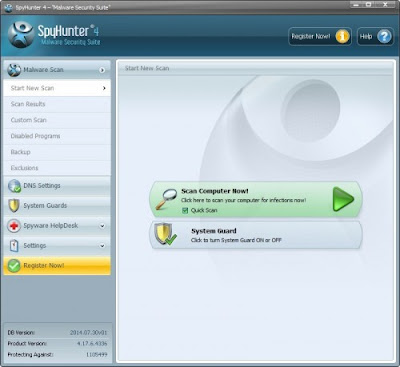
3) Open SpyHunter and click Scan Computer Now! to allow the program to start a scan on your computer.

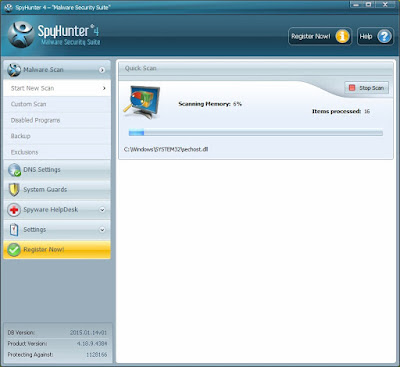
4) SpyHunter will now start scanning your computer as shown below.

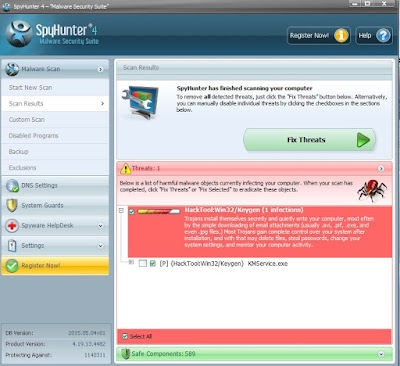
5) When the scan is completed, all the threats in your computer are successfully detected. Click Fix Threats button to uninstall it.

Step 2: Optimize your PC with RegCure Pro

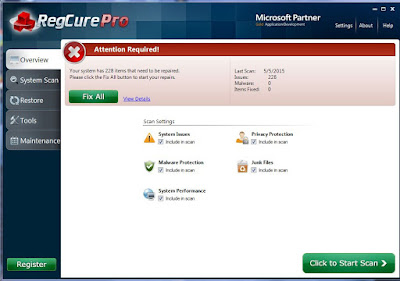
RegCure Pro is an advanced optimizer which is able to solve your computer system problems, remove your privacy items produced by online searches, delete junk files, uninstall malware and fix performance problems. Here shows how it works.

1) Click the below button to download the file.
http://www.blogines.com/zmxg/regcure.php

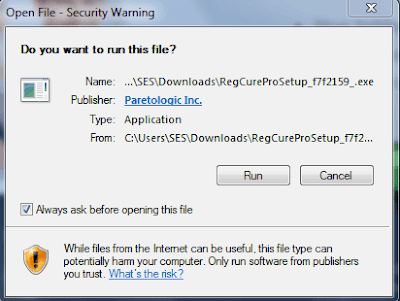
2) Run the RegCureProSetup Application and click the Yes button to install the program step by step.

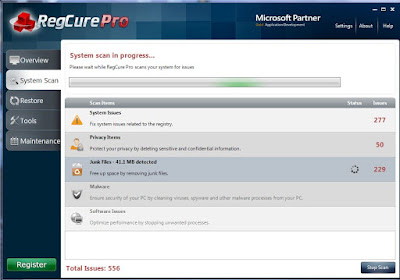
3) When the program is successfully installed, double click on its desktop shortcut to open it. On the Overview tab, check all the scan settings and then click on the Click to Start Scan button to run a system scan on your computer.

The screenshot of the system scan progress is shown below.

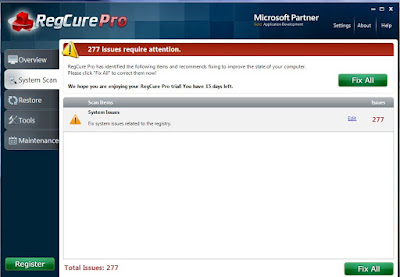
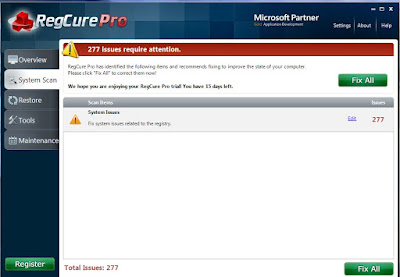
4) When the system scan is done, click on Fix All button to completely remove all the performance problems in your computer.

Want to get rid of those potentially unwanted programs like OtShot or other malicious virus?
Want to optimize your computer and boost your system performance?


Effective Way for you to Remove Razor Web from Your Computer

 Razor Web is an adware. It usually privately sneaks into your computer. Once it gets inside your computer, you may face a great deal of troubles. If you want to remove it, please follow the below instructions. 

What is Razor Web?

Razor Web is usually defined as an adware that will bring you many chaos. In most cases, it sneaks into your computer through some freeware or shareware downloads. Most commonly Razor Web is bundled within the installers from Cnet, Softonic or other similar custom third-party installers. If you frequently click on suspicious links or visit  offensive websites, your computer may at the risk of being infected with Razor Web or other malicious program.
Once Razor Web successfully infiltrates into your computer, it will display coupons for every sites you visit and provide competitive prices when you view product pages at sites like Amazon. Though it sounds like a useful service, the Razor Web program can be intrusive and will display ads whether you want them to or not. These ads aim at promoting the installation of additional questionable contents including web browser toolbars, optimization utilities and other products. Then, the publisher of Razor Web can generate pay-per-click revenue.

What will Razor Web do to your computer?

1) It will slow down the performance of your computer because your web page will always full of pop-ups, sponsored links, banners or interstitials.
2) It will your default DNS settings and block your access to the websites that you want to visit.
3)It will other malware or virus if you incautiously click on those ads or sponsored links.
4) It will privately collect your confidential information and sell them to the third-party.
5) It will run in the background of your system and consume lots of system resources to slow down the speed of the computer.

How to remove Razor Web completely?

Razor Web can bring certain troubles on your computer, so if you find your computer had been infected with Razor Web, you are suggested to remove it as soon as possible.

Method 1. Remove Razor Web manually

STEP 1 : Uninstall Razor Web from Windows
1. Access Window’s Start Menu and select “Control Panel”.
2. Select “Programs and Features”.
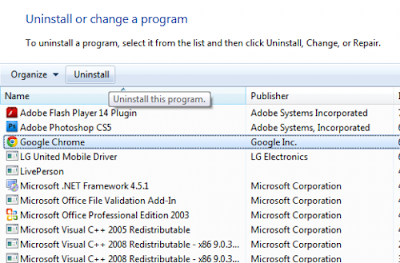
3. Search for the potentially unwanted program and uninstall it by clicking the “Uninstall” button.



STEP 2 :Uninstall Razor Web from your browser
Internet Explorer
1. Go to Tools and select Manage add-ons
2. Disable the items which are related the program.


Mozilla Firefox
1. Go to Firefox’s Tools, and then select Add-ons
2. Navigate to Add-ons panel, and remove those extensions which are associated with Razor Web


Google Chrome
1. Click the Menu icon of Chrome and select Settings
2. Click Extensions on the left panel and remove the extensions related to Razor Web


STEP 3 :Show all hidden files
Press the Star button and type” Folder Options”, then Click Folder Options; Click the View tab, select Show hidden files and folders and then clear the checkbox for Hide protected system operating files.


STEP 4:Seek and delete related files of Razor Web in hidden folders listed below:

%Temp%\[adware name]
%AppData%\[adware name]
%LocalAppData%\[adware name]
%LocalAppData%\[adware name].exe
%CommonAppData%\[adware name]
%AllUsersProfile%random.exe

STEP 5: Delete all related registries
• Call out “Run” box by pressing “Windows” key + “R” key on your keyboard;
• Type “Regedit” into the Run box and click OK to open Registry Editor


Delete them all:
HKEY_LOCAL_MACHINESOFTWAREsupWPM
HKEY_LOCAL_MACHINESYSTEMCurrentControlSetServicesWpm
HKEY_CURRENT_USERSoftwareMicrosoftInternet ExplorerMain “Default_Page_URL”
HKEY_LOCAL_Machine\Software\Classes\[adware name]
HKEY_CURRENT_USER\Software\Microsoft\Windows\CurrentVersion\Uninstall\[adware name] 

Method 2. Remove Razor Web automatically

Step 1. Click the following icon to download SpyHunter.

http://www.blogines.com/zmxg/spyhunter.php

Step 2. Double click on its file and then click the Run button to enter the installation procedure.


Step 3. Choose the option I accept the EULA and Privacy Policy, and then click INSTALL button to continue the installation process.


Step 4. When complete the installation, open SpyHunter and click Scan Computer Now! button to start scan your computer.

Step 5. Then check the scan result and click on Fix Threats button to make your computer clean rapidly.


Optional solution: use RegCure Pro to optimize your PC.

Step 1. Download RegCure Pro by Clicking on the icon below

http://www.blogines.com/zmxg/regcure.php

Step 2. Double-click on the RegCure Pro program to open it, and then follow the instructions to install it.


Step 3. When complete the installation, open the application and choose which part you want to scan, and then click the button Click to Start Scan.


Step 4. When the System Scan is done, click Fix All button to correct all the security risks and potential causes of your computer slow performance.

SpyHunter and RegCure Pro may be the best choice for you to prevent your computer from various virus attacks. With the former one, your system can be always be protected. With the latter one, your computer can always stay clean.