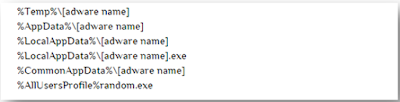
Showing posts with label fix hijacked browser. Show all posts

Fix Your Browsers Hijacked by Search.SearchGeniusinfo.com

Search.SearchGeniusinfo.com

    Search.SearchGeniusinfo.com is related to a hijacker that brought to your browsers by program bundled. You should not underestimate this page by its innocent look, it will cause trouble more than you think. 
    Like the majority browser hijackers, Search.SearchGeniusinfo.com will replace your default homepage and search engine. The modifications are done to your browsers settings and registry data, so it will be difficult to get rid of it permanently. The search results provided by this engines are usually full of spams and sponsored information. The ads are not reliable that you should never try to click on them, otherwise you will be redirected to unwanted sites and get unnecessary plugins. The infected browsers will act abnormally and your browsing will be slowed down. 
    The hijacker can be promoted through freeware downloading and shareware installing. Careless users will get the hijacker as an addition of other programs, if they blindly click to every step during the installing processes. You need to be watchful when surfing the Internet, avoid clicking to the dubious ads and suspicious sites you.

    A screenshot of Search.SearchGeniusinfo.com

    Tip: Such a hijacker never comes alone, there can be other threats in your PC. You can try to use a free scanner to know the exact security condition by a total check:


    How can we remove Search.SearchGeniusinfo.com?

    You can try to remove it step by step, following the below removal instruction. To ensure the removal successful and complete, you can also use a removal tool to deal with it conveniently to save your time.  


    Method A. Manually Removal

    Step 1. Reset your browsers' settings 

    For IE:

    1. Open Internet Explorer, press Alt+X >> select Internet options >>  General tab >> enter your preferred URL >> Apply
    2. Continue to General tab >> Delete… >> Delete Browsing History

    For Firefox:
    1. Open Mozilla Firefox menu >> Options >> General tab >> Restore to Default >> OK
    2. Open Mozilla Firefox menu >> History >> Clear Recent History… >> Clear Now 
    For Chrome:
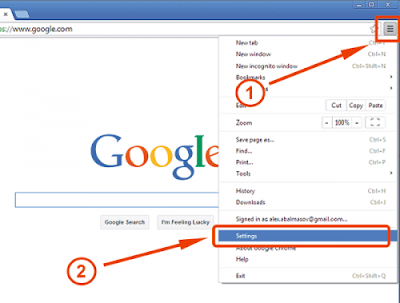
    1. Open Google Chrome menu >> Settings >> On startup option, click Set pages, delete the unwanted address  >> OK
    2. Continue to Appearance option >> Show Home button >> Change >> delete the unwanted address >> OK 
    3. Press Ctrl+H to History tab >> Clear browsing date… >>click clear browsing date to confirm 

    Step 2. Uninstall the related programs from your control panel.
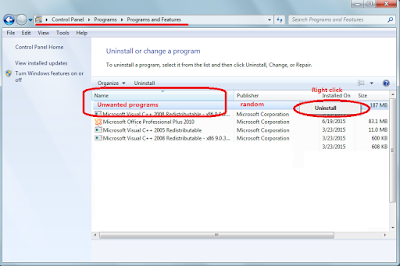
    Start>> Control Panel >> Programs >> Programs and Features
    You will see the list of programs in your PC, uninstall the unwanted ones.


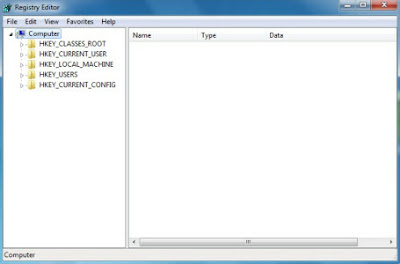
    Step 3. Press Windows+R to open Registry Editor, type into Regedit, press Enter and then delete all the malicious registries as shown.


    Method B. Automatic Removal

    SpyHunter is a powerful anti-spyware remover that can help you get rid of suspicious and unwanted programs. fix annoying threats and bring safety back to your PC. The step of how to download and use SpyHunter are shown below.
    Step 1. Download SpyHunter by clicking the button below. 


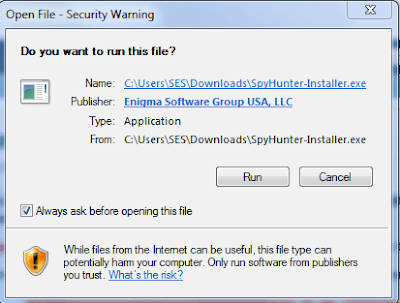
    Step 2. Install the program by double clicking SpyHunter-Installer.exe.
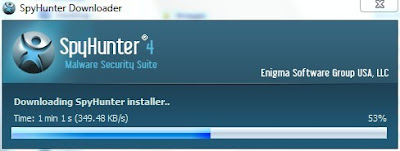

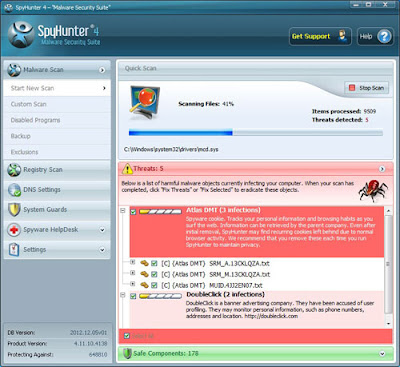
    Step 3. Open SpyHunter after the installation and make the program scan your computer by clicking the button Scan Computer Now!.
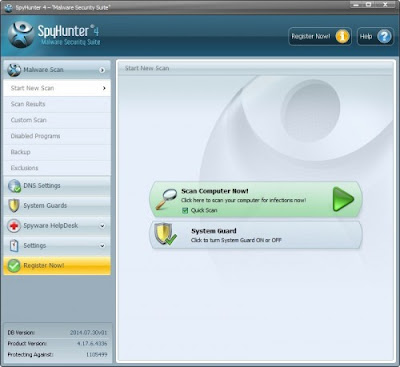
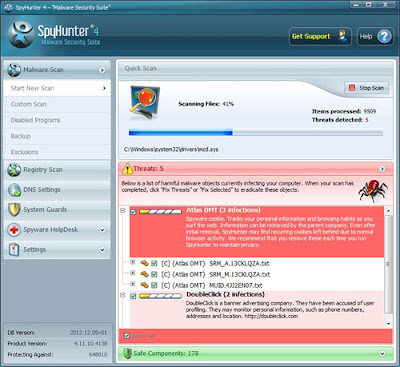

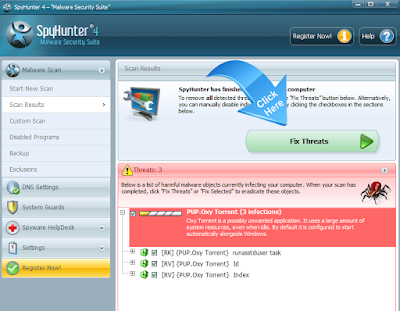
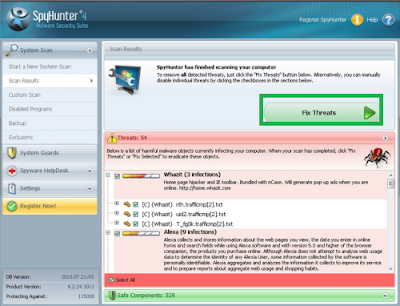
    Step 4. Click the button Fix Threats to clean up dangerous and unwanted programs after the scanning.
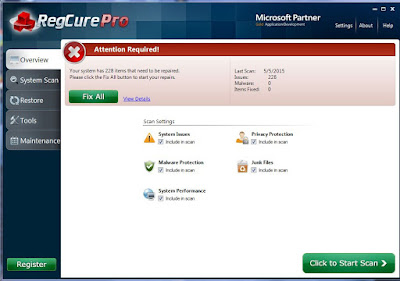
    RegCure Pro is a strong optimizer which can boost PC's speed and performance, stop unneeded programs and delete privacy items that may contain your confidential information. The steps of how to download and use RegCure Pro are shown below.
    Step 1. Download RegCure Pro by Clicking the button.


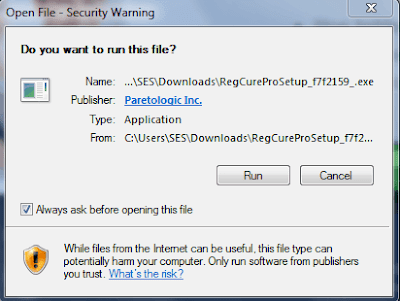
    Step 2. Install the program by clicking the button Yes.
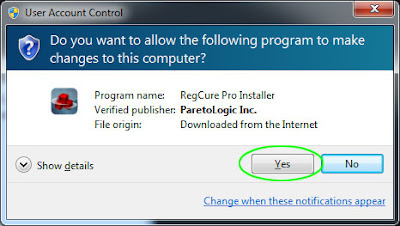

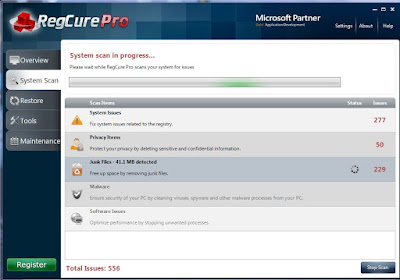
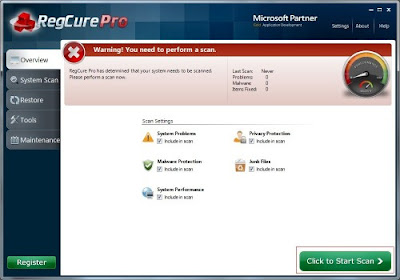
    Step 3. Run RegCure Pro after the installation and click the button Click to Start Scan to allow the program to scan your computer.

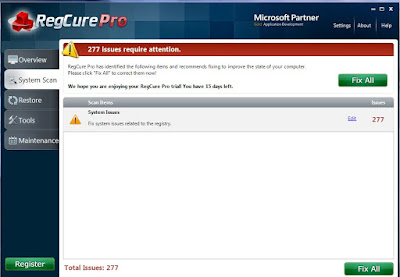
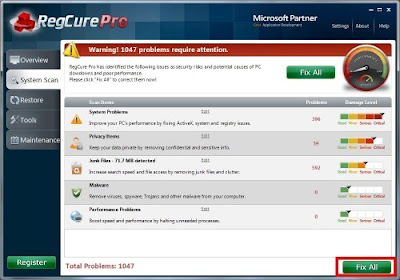
    Step 4. Click the button Fix All to complete the scanning.

    Final Recommended : Search.SearchGeniusinfo.com hijacker should be removed in efficient method to stop it from coming back, try the helpful tools if you meet any trouble:

    Download SpyHunter to Clean up Malicious Programs.
    Download RegCure Pro to Boost PC's Speed and Performance.
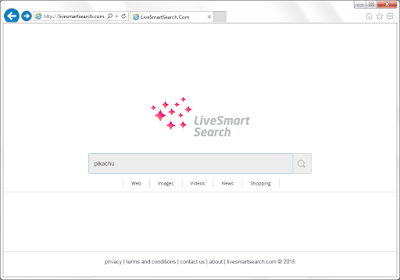
    Hijacked by livesmartsearch.com? - Fix Your Browsers with Easy Methods

    What is livesmartsearch.com


    livesmartsearch.com is classified as a browser hijacker because it keep redirecting users' browsing. Generally, it sneaks into your computer during the installing processes of some freeware and shareware. Besides the bundling way, the hijacker can be also brought by viruses like Trojan horse. No matter how did the browser hijacker come, it will brings some inconveniences as soon as it comes to your browsers.


    First, it will modify your default homepage and DNS, so every time you open your browser you will be redirected to livesmartsearch.com. This search engine offers no helpful search results, but spams instead. Ads and sponsored links are added to the search results, too. What's more, the redirects will usually cause unwanted programs downloaded. Before long, your computer may experience great disaster like slow behavior in a system or crashing down, because your computer has piled up with system junk files. 


    If you want a quicker solution to remove it : Try the recommended removal tool.


    How to remove livesmartsearch.com hijacker effectively


    Here we will introduce you two ways to remove livesmartsearch.com:

    Guide 1. Manually remove livesmartsearch.com

    Step 1: Stop related running processes in Windows Task Manager first.
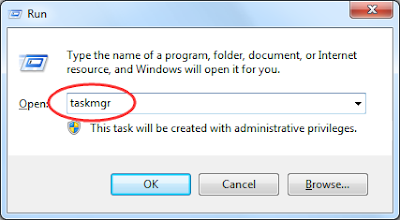
    ( Methods to open Task Manager: Press CTRL+ALT+DEL or CTRL+SHIFT+ESC or Press the Start button->click on the Run option->Type in taskmgr and press OK.)


    Step 2: Remove livesmartsearch.com extension or add-ons from your browsers.


    Internet Explorer
    1) Start Internet Explorer and choose "Tools" >"Manage add-ons".
    2) Choose “Toolbars and Extensions”, then find and remove related programs.
    3) Restart browser to complete the whole process.


    Mozilla Firefox
    1) Start Firefox and choose "Tools" > "Add-ons"> "Extensions".
    2) Search for related items and remove them.
    3) Restart Firefox to complete the process.


    Google Chrome
    1) Open Google Chrome and click on “Wrench” or “bar” icon in top right corner.
    2) Choose “Settings” > “Extensions”, then find and delete add-ons.
    3) Restart the browser to complete the whole process.
      

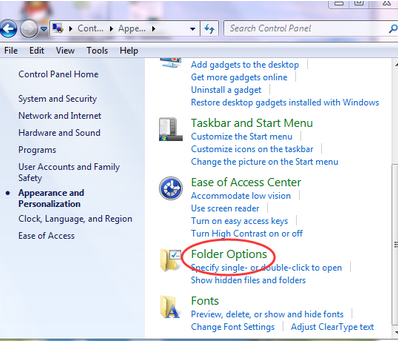
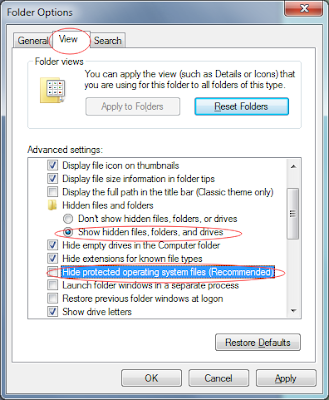
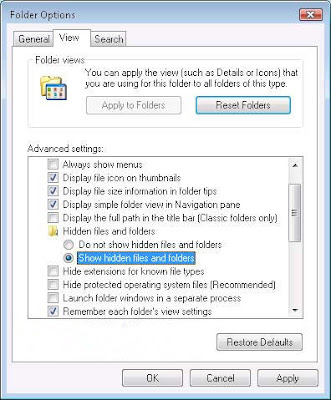
    Step 3: Open Control Panel in Start menu and search for Folder Options. When you’re in Folder Options window, please click on its View tab, tick Show hidden files and folders and non-tick Hide protected operating system files (Recommended) and then press OK.


    All the infection associated files listed below need to be removed:
    %CommonAppData%\<random>.exe
    C:\Windows\Temp\<random>.exe
    %temp%\<random>.exe
    C:\Program Files\<random>

    Step 4: Go to the Registry Editor and remove all the infection registry entries listed here:

    (Steps: Hit Win+R keys and then type regedit in Run box to search)


    Delete them all:


    HKEY_LOCAL_MACHINE\SOFTWARE\Microsoft\Internet Explorer\Main "Start Page" = "http://www.<random>.com/?type=hp&ts=<timestamp>&from=tugs&uid=<hard drive id>"
    HKEY_LOCAL_MACHINE\SOFTWARE\Microsoft\Internet Explorer\Search "CustomizeSearch" = "http://www.<random>.com/web/?type=ds&ts=<timestamp>&from=tugs&uid=<hard drive id>&q={searchTerms}"

    Guide 2. Automatically remove livesmartsearch.com(Most effective)

    Step 1: Click the following button to download SpyHunter.


    Step 2: Save it into your computer and click on the Run choice to install it step by step.


    Step 3: Click Finish then you can use it to scan your computer to find out potential threats by pressing Scan computer now!


    Step 4: Tick Select all and then Remove to delete all threats.


    After Removal : Double check your computer with RegCure Pro


    If you are still worried about the leftover of livesmartsearch.com and want to clean all the unwanted registry entries,  it is recommended to use RegCure Pro.

    Step 1. Install and launch RegCure Pro on your PC.

    http://www.pcproblemsolve.com/hdqc/regcure.php

    Step 2.  Select "Yes" to download and install RegCure Pro.

    Step 3. RegCure Pro will open automatically on your screen.

    Step 4. RegCure Pro is scanning your PC for error.
     

    Step 5. After scanning, choose the issues you want to fix. 

    Final recommendation : Manual removal guides command certain computer knowledge, if you know little about it, we recommend you to use SpyHunter to clean the threat and use RegCure Pro to clean the registries.

    Remove Esurf.biz from Your IE/ Chrome /Firefox - Remove Browser Hijacker Easily

    Information of Esurf.biz Hijacker


    Esurf.biz can be attractive to some users because it has convenient shortcuts on it. But when this page is set as your default homepage as a browser hijacker, you probably will not enjoy it.
    Reasons to deny Esurf.biz hijacker

    • Locked Homepage. It will replace your homepage and forbid you to use other pages you like.
    • Redirects. When victims open the infected browsers, they may see some irrelevant pages against their will.
    • Unwanted Ads. Due to the redirects, users will see a lot of ads and spam, which are promoting unwanted information.
    • Poor Performance. The infected browsers may have a poor performance since they work sluggishly and freeze are caused.

    Even when used as a search engine, Esurf.biz will not offer you ideal search results. You can only get spam information and ads instead of helpful results. It is recommended to get rid of this hijacker and use efficient search engines like Google and Bing.


    >>>A quicker way to get rid of it : Try the recommended removal tool<<<


    How to remove Esurf.biz successfully?

    Solution 1. Manually Removal

    Step 1. Reset your browsers' settings 

    For IE:
    1. Open Internet Explorer, press Alt+X >> select Internet options >>  General tab >> enter your preferred URL >> Apply
    2. Continue to General tab >> Delete… >> Delete Browsing History
    For Firefox:
    1. Open Mozilla Firefox menu >> Options >> General tab >> Restore to Default >> OK
    2. Open Mozilla Firefox menu >> History >> Clear Recent History… >> Clear Now 
    For Chrome:
    1. Open Google Chrome menu >> Settings >> On startup option, click Set pages, delete the unwanted address  >> OK
    2. Continue to Appearance option >> Show Home button >> Change >> delete the unwanted address >> OK 
    3. Press Ctrl+H to History tab >> Clear browsing date… >>click clear browsing date to confirm 

    Step 2. Find the hidden files and delete them.
    Press the Start buttonm click the Control Panel>Appearance and Performance>Folder Options, click the View tab and select Show hidden files, folders and drives but uncheck Hide protected operating system files(Recommended), and then hit the OK button.


     Step 3. Go to the local dick C and clean all the files related with Esurf.biz  as below.


    Step 4. Delete associated registry data.
    Press Windows+R to open Registry Editor, type into Regedit, press Enter and then delete all the malicious registries as shown.


    Solution 2. Automatic Removal

    If you think the removal steps are complicated, you can rely on a removal tool like Spyhunter. With its help you can fix all the stubborn computer problems easily.

    Step 1. Click the button below to download SpyHunter.


    Step 2. Run SpyHunter-Installer.exe to install Spyhunter step by step.


    Step 3. Open SpyHunter after the installation and make the program scan your computer by clicking the button Scan Computer Now!.


    Step 4. Click the button Fix Threats to clean up dangerous and unwanted programs after the scanning.


    Extra steps : Fix your registry data with RegCure Pro 

    RegCure Pro is a strong optimizer which can boost PC's speed and performance, stop unneeded programs and delete privacy items that may contain your confidential information. The steps of how to download and use RegCure Pro are shown below.
    Step 1. Download RegCure Pro by Clicking the button.


    Step 2. Install the program by clicking the button Yes.


    Step 3. Run RegCure Pro after the installation and click the button Click to Start Scan to allow the program to scan your computer.


    Step 4. Click the button Fix All to complete the scanning.


    Warmly Recommended: Esurf.biz brings nothing good but troubles. Remove it as quickly as you can. Use the recommended tools to protect your PC better:

    Download SpyHunter to Clean up Malicious Programs.
    Download RegCure Pro to Boost PC's Speed and Performance.